Frequently Asked Questions (FAQ)
If you have reviewed this FAQ and are still experiencing difficulties, please email: [email protected].
When contacting support, please include: Your name, course name, description of the issue, and any screenshots (if possible). This will help us resolve your issue efficiently.
Getting Started & Logging In
Before you can access your course, you MUST activate your account AND create a password:
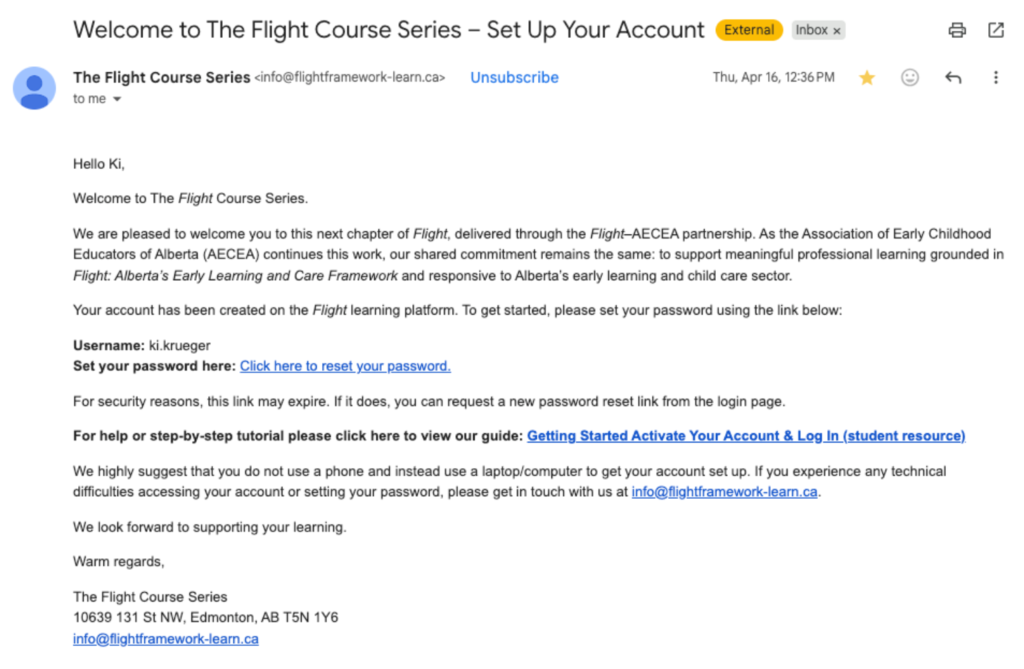
1. Open the email you received from Flight ([email protected]).
2. Click on the link that says “Click here to reset your password.”
3. Create and save your password.
4. Click Log In.
5. Select “Log in with your password.“
6. Enter your email address and password.
7. Complete the Two-Factor Authentication setup.
8. You will be taken to My Courses, where you can select your course.
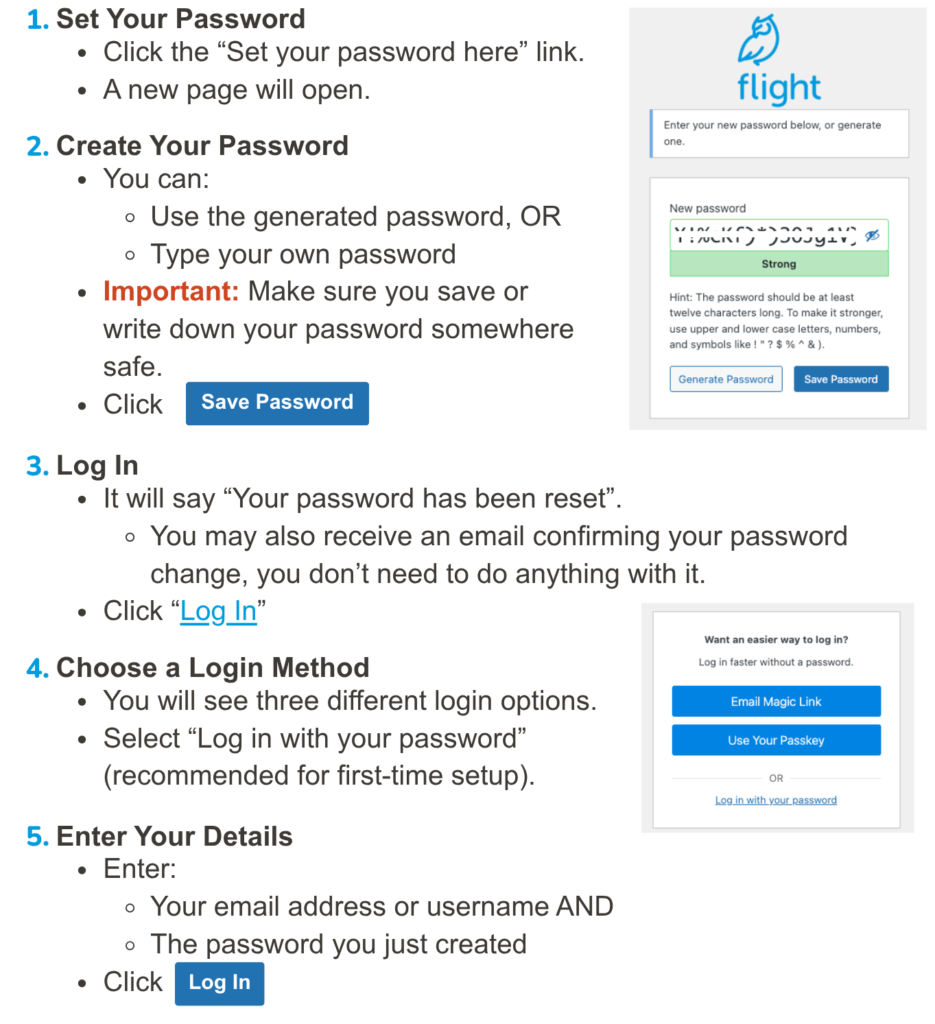
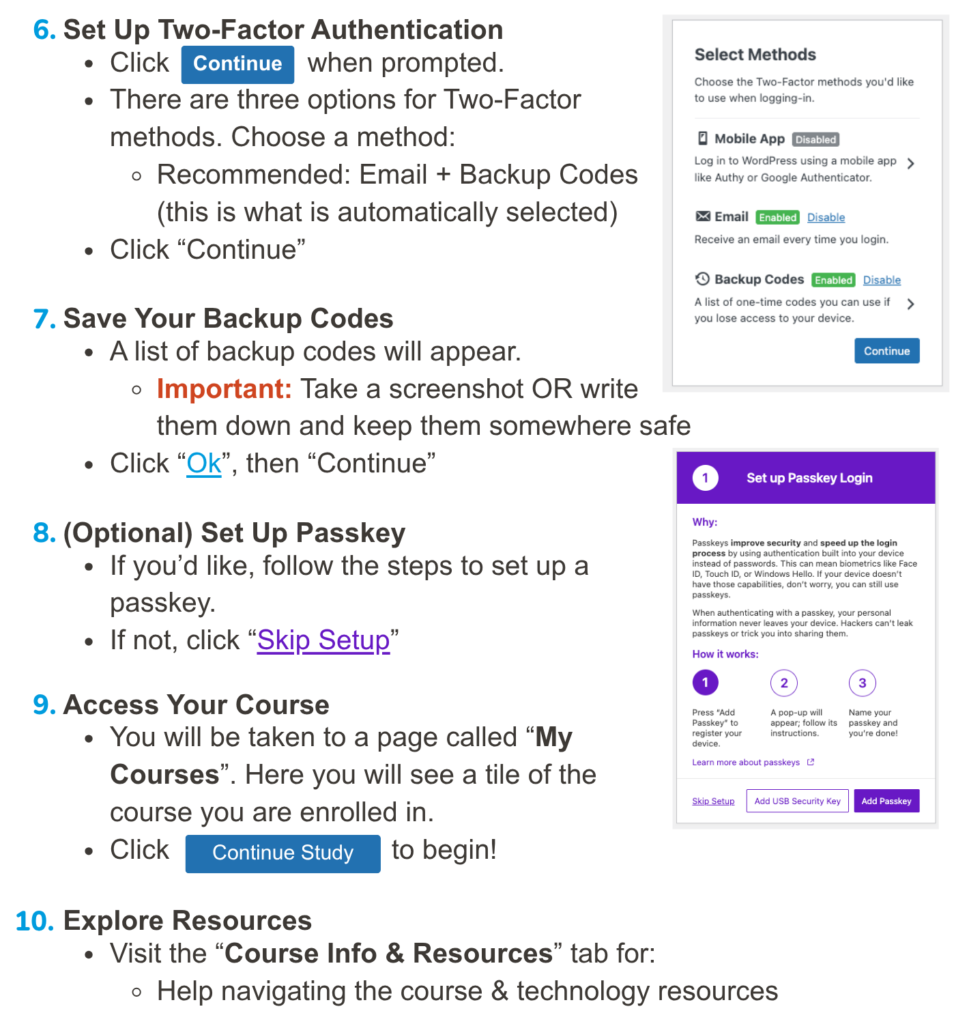
Click here to view more detailed instructions about first accessing your course
Follow these steps to set up your account and access your course:
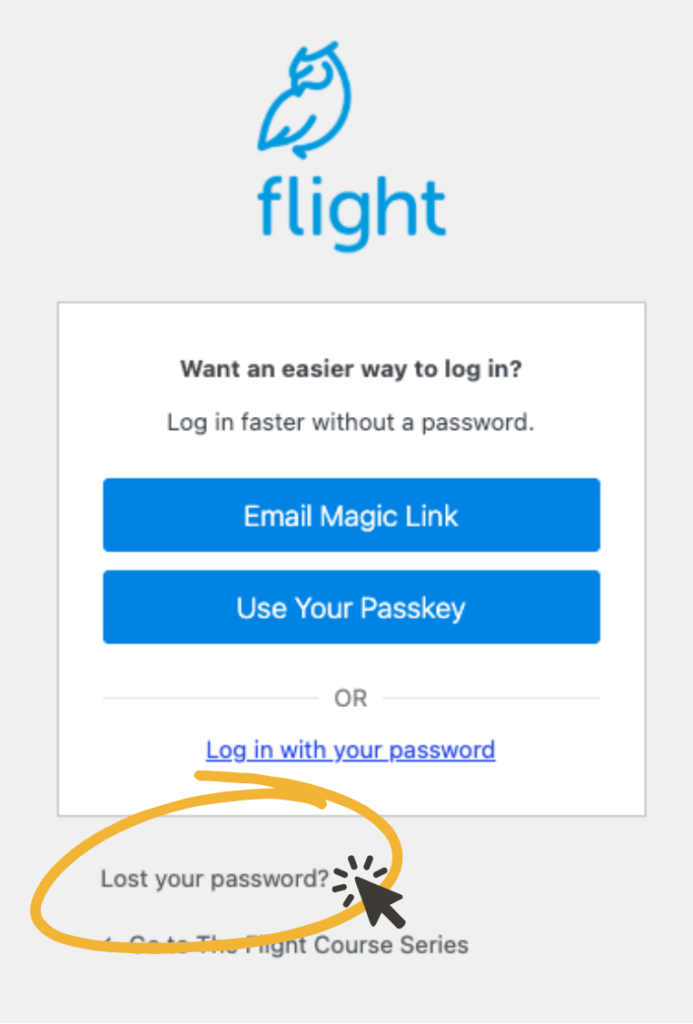
- Go to the login page, by clicking “Log In” in the top right corner.
- Click Lost your password?
- Enter the email address associated with your account and click “Get New Password”.
- Check your email for password reset instructions.
- Follow the link to create a new password.
Please check:
If you still cannot find the email, contact us at [email protected] and we can resend your activation email.
The email will look like the following:
Accessing & Navigating Your Course
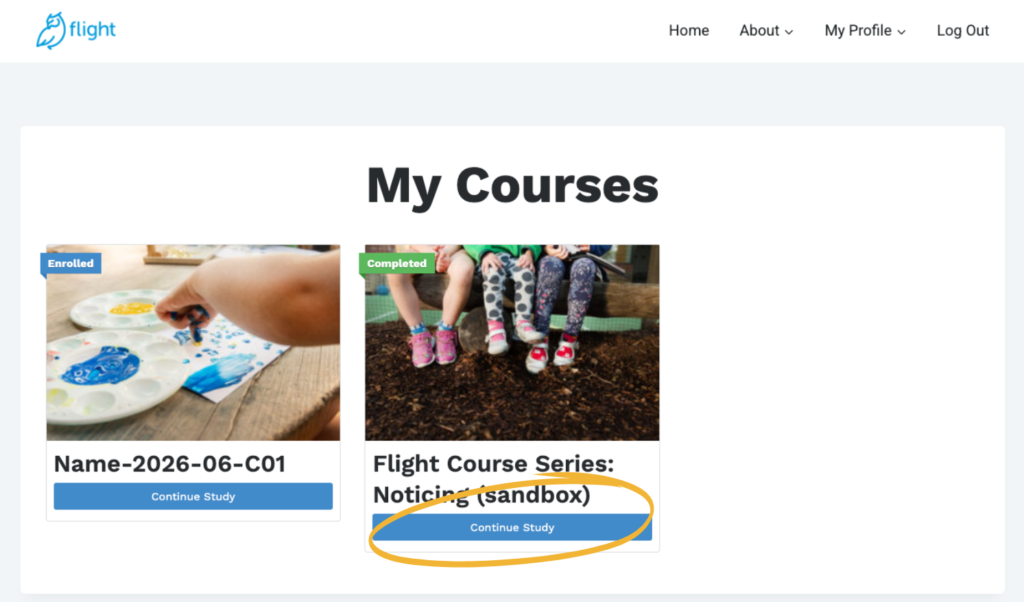
After logging in, it will direct you to the My Courses page (additionally, you can find this page in the top right corner and hovering over the My Profile tab).
Click Continue Study on your course tile to enter your course.
If you do not see your course tile, please reach out to [email protected]
Click on the Course Info & Resources tab. There you will find:
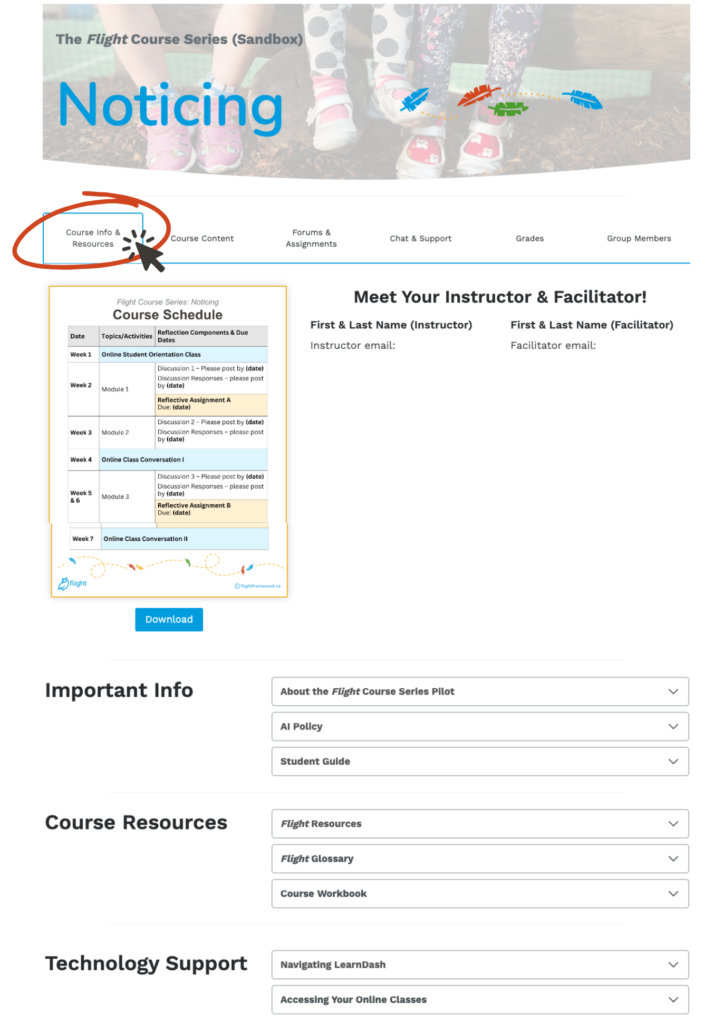
Your course contains several tabs, including:
Much of the course is done on your own time! We use a few different methods to support your learning in this way. There’ll be some readings for you to do in each of the modules. There are two textbooks as well as some other links to online articles.
With each module there’s some learning activities for you to engage in independently to help support the ideas you’ve been thinking about and reading about. Each module also has you engage in discussion posts with your classmates. This is done asynchronously meaning not at the same time. So you might write a post and someone might respond the next day and you can respond to their response the day after that. And there are assignments that you can complete using text, audio, or images with text. There are due dates to the assignments but you accomplish them individually and on your own time.
The piece that is not asynchronous is the online sessions. We’ll meet all together at the same time live online in a virtual class built into the course learning platform.
Click the Course Content tab.
Modules and activities are organized into folders. Select the appropriate module or week to access your learning materials.
In each module folder you will find links to the following:
1. The module book (this is the main content)
2. Instructions for the discussion post – which includes a link to the discussion forum (if applicable)
3. The reflective assignment instructions and submission area (if applicable)
4. Module checklist of learning activities
You can refer to the following:
Module learning activities should be completed in the order they appear unless otherwise indicated.
Live Online Class Conversation (OLC)
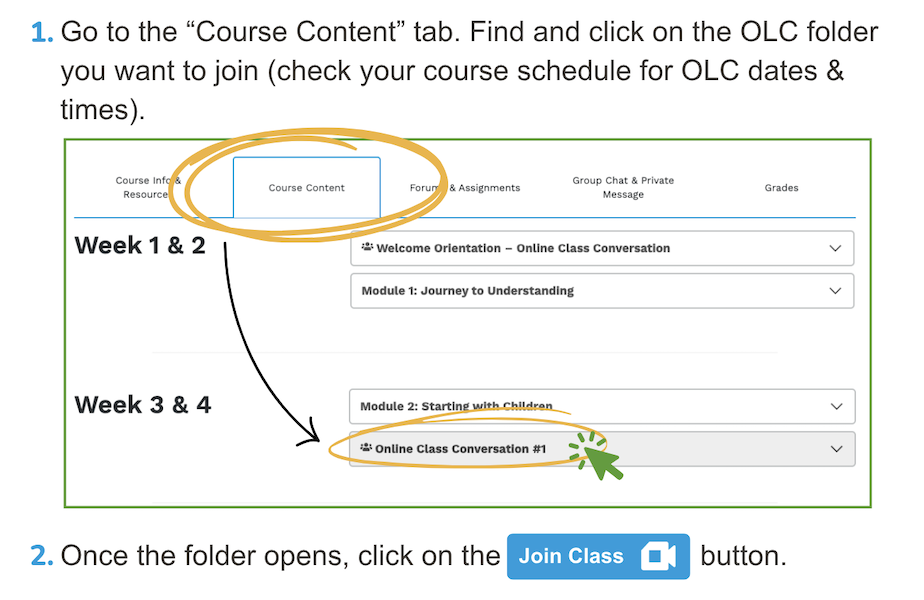
The online class conversation link is located in the course. You can find the online class link in the course by going to the “Course Content” tab. In this tab you will see different sections/folders. Locate and open the folder for online class conversation you are wanting to join. In each folder you will see the button “Join Class“, this will bring you to your online class.
Additionally, there are resources located in the “Course Info & Resources” tab that can further support you in navigating the course/LearnDash.
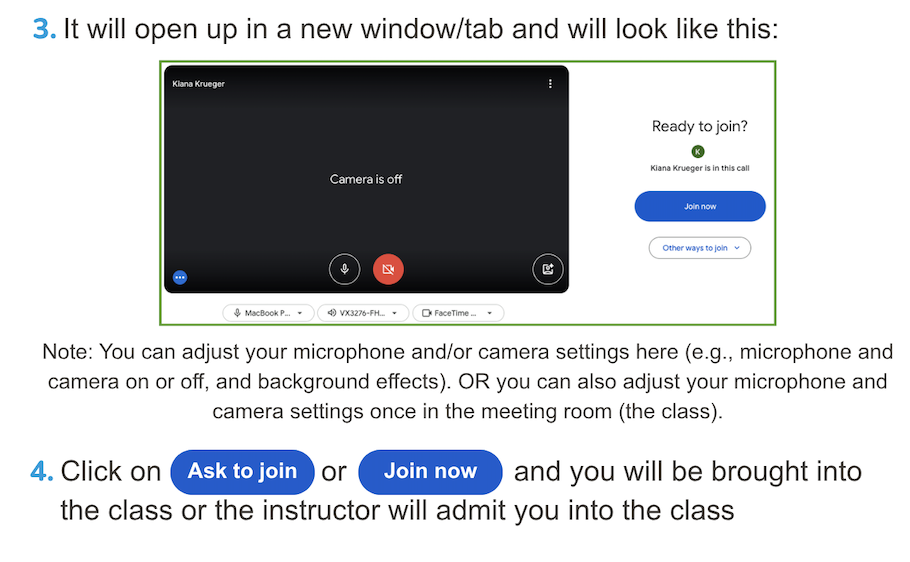
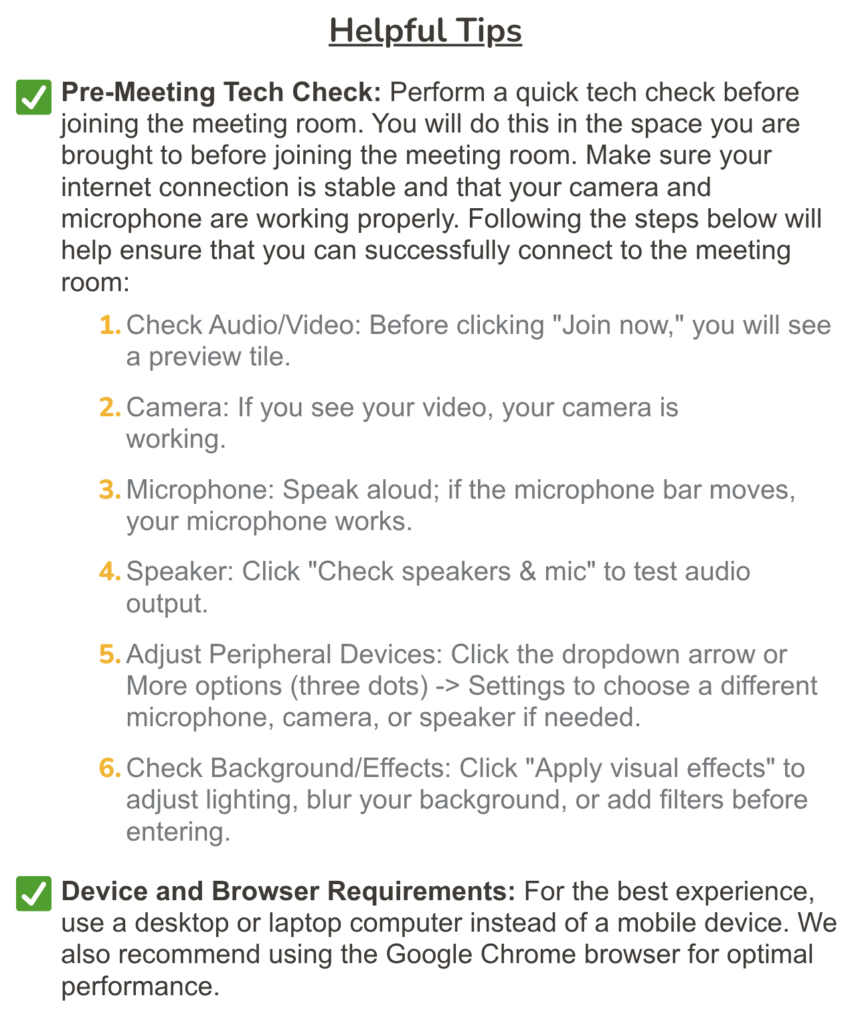
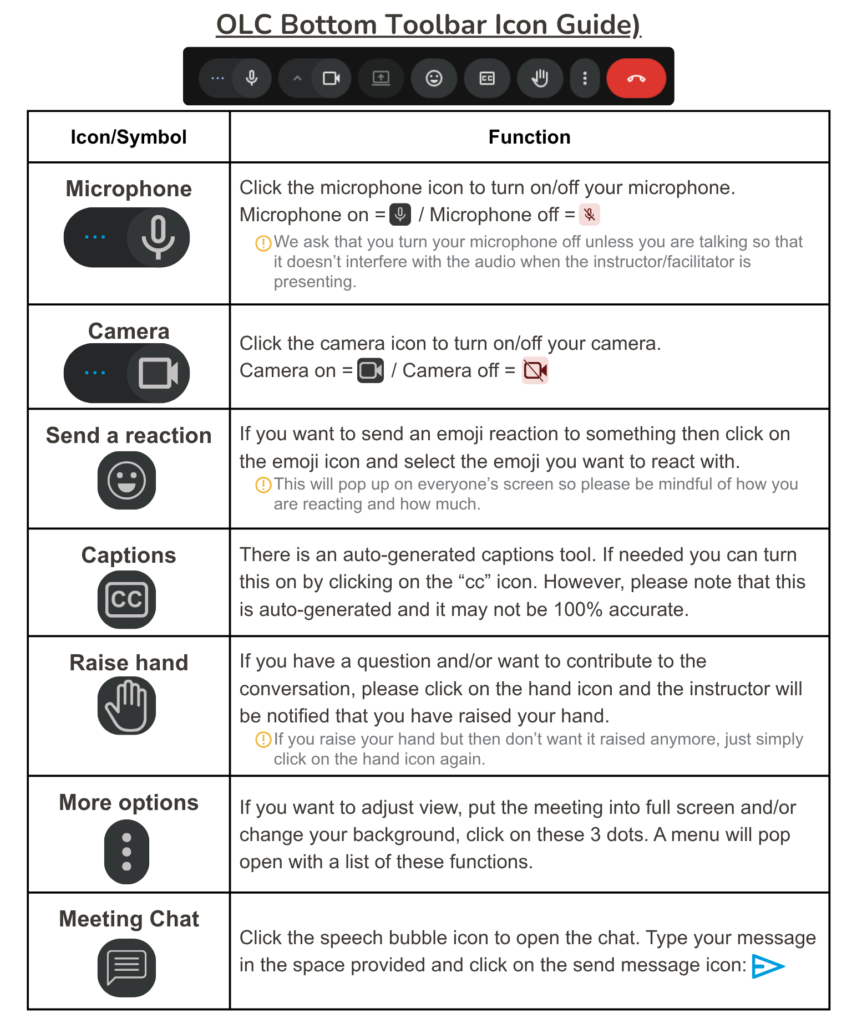
Follow these steps to access your OLC:
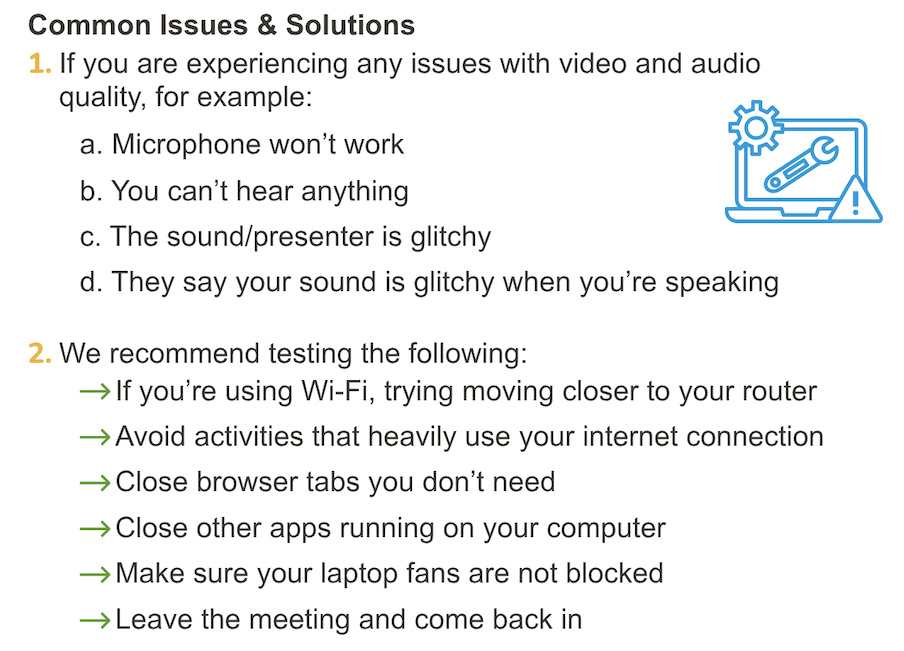
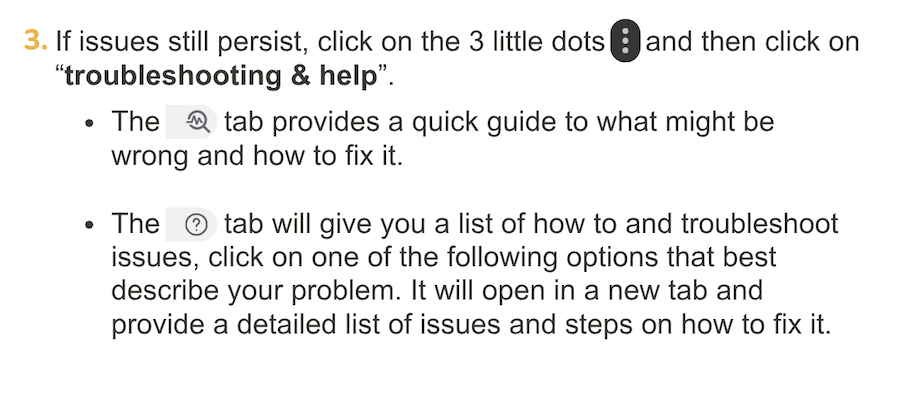
Troubleshooting